
Connect phone to TV
Samsung DeX HDMI: How to Connect Your Galaxy Phone to a TV
Samsung DeX HDMI works on Galaxy S8 and newer S models, Galaxy Note 8 and newer, the Galaxy Z Fold series, Galaxy Tab S tablets (S4 and newer, plus S5e) and the Galaxy A90 5G. Plug a USB-C to HDMI cable into the phone and the TV, pick the right HDMI input, and the TV shows either the DeX desktop or a mirror of your phone screen. Other Galaxy A, M and F phones and the Galaxy Z Flip have no video output over USB-C, so no cable will work on them.
On this page
Samsung DeX turns a big screen into a desktop-style workspace powered by your phone: resizable windows, a taskbar, and support for a keyboard and mouse. The same cable can also give you a simple mirror of the phone screen, which is what most people want for videos and photos. This guide covers which Galaxy models can do it, how to connect, how to switch between DeX and mirror mode, and what to do if your phone is not on the list.
Samsung DeX HDMI: which Galaxy phones work?
A wired connection to a TV needs a hardware feature called DisplayPort Alt Mode: the phone's chipset and USB-C port must be able to send a video signal, and Samsung must have enabled it. Charging and file transfer over USB-C do not mean video works. Samsung enabled it on its flagships, and those same models run DeX on a TV or monitor.
| Galaxy model | HDMI output and DeX? | Notes |
|---|---|---|
| Galaxy S8 and newer S models (incl. S20 FE) | Yes | DeX or mirror over a USB-C to HDMI cable |
| Galaxy Note 8 and newer | Yes | DeX or mirror |
| Galaxy Z Fold series | Yes | DeX or mirror |
| Galaxy Tab S4 and newer, Tab S5e | Yes | DeX or mirror |
| Galaxy A90 5G | Yes | The only Galaxy A model with video output |
| Other Galaxy A, M and F phones, Galaxy Tab A | No | No video over USB-C; use Smart View instead |
| Galaxy Z Flip series | No | USB 2.0 port, cannot carry video |
If your model is not in the table, it is probably a budget model without video output, but the quickest way to be sure is to check before you buy a cable. For phones from other brands, see the full list of phones that support HDMI output.
No app or setting can add HDMI output to a Galaxy A, M, F or Z Flip. It is a hardware limit. An "OTG to HDMI" or "MHL" adapter will not change that either. On these phones, connect wirelessly with Smart View (see below).
How to connect a Samsung phone to a TV with an HDMI cable
For a Samsung DeX HDMI setup you need a USB-C to HDMI cable, or a USB-C adapter or hub with an HDMI port. Our USB-C to HDMI adapter guide explains what to look for, including 4K and power pass-through.
- Plug the HDMI end into the TV. Note the number of the HDMI port you use (HDMI 1, HDMI 2 and so on).
- Switch the TV to that input. Use the Input or Source button on the TV remote and pick the same HDMI number.
- Unlock your Galaxy and plug in the USB-C end. If you use an adapter that needs power, connect your charger to the adapter's USB-C power port as well.
- Accept any prompt on the phone. Depending on your model and software, the phone may ask whether to start DeX or show a notification about the connected display.
- Choose DeX or mirroring. The TV shows either the DeX desktop or a mirror of your phone. Switch between them with the steps in the next section.
When it works, the picture appears within a few seconds, sound plays through the TV, and there is no lag because nothing goes over Wi-Fi. If the TV says "No signal", go through our USB-C to HDMI not working checklist.
DeX vs mirror mode: how to switch
Over a Samsung DeX HDMI connection the phone can do one of two things:
- DeX: a desktop-style interface on the TV with its own windows and taskbar. The phone screen stays free, so you can use it as a touchpad or for something else.
- Screen mirroring: the TV shows exactly what is on your phone. This is DeX mirror mode in the sense most people mean: DeX switched off, plain mirror on.
To switch, open the quick settings panel (swipe down from the top of the screen twice) and tap the DeX tile. With DeX on, the TV shows the desktop; with DeX off, the TV mirrors the phone. If you do not see the tile, edit the quick settings panel to add it, or go to Settings > Connected devices > Samsung DeX. The exact wording can differ a little between One UI versions.
Tip: For movies, photos and games, mirror mode is usually simpler. Many apps stay in portrait in a mirror, so rotate the phone to landscape to fill the TV. DeX is better for work: email, documents and browsing in several windows at once.
Keyboard, mouse and sound
Keyboard and mouse
DeX is built to be used like a computer. You can pair a Bluetooth keyboard and mouse with the phone as usual, or plug USB ones into a hub that has spare USB ports alongside HDMI. If you have neither, DeX can turn the phone screen itself into a touchpad; the option appears on the phone while DeX is running.
Sound
HDMI carries audio as well as video, so with Samsung DeX HDMI the sound normally plays through the TV speakers as soon as the cable is connected. If you hear nothing, check the TV volume and input first, then the phone's media volume. Our troubleshooting guide has a section on no sound over HDMI.
Samsung phone to TV without a cable: Smart View
If your Galaxy has no HDMI output, or you simply do not want a cable, use Smart View, Samsung's built-in screen mirroring. It sends your screen to a smart TV over Wi-Fi (Miracast). Open quick settings, tap Smart View, and pick your TV from the list. Many smart TVs support it, and in some cases it works without a router.
Smart View is wireless, so expect a little delay and a picture that depends on your Wi-Fi. It suits photos, videos and presentations better than fast games. For other wireless options, including Chromecast and DLNA casting, see how to connect a phone to a TV without Wi-Fi and our main guide to connecting a phone to a TV with HDMI.
| Samsung DeX HDMI (cable) | Smart View (Wi-Fi) | |
|---|---|---|
| Galaxy models | S, Note, Z Fold, Tab S, A90 5G | Most Galaxy phones |
| Lag | None | Some |
| Desktop mode | Yes (DeX) | Mirror only |
| Needs | USB-C to HDMI cable | Smart TV with screen mirroring |
How the USB-C to HDMI app helps
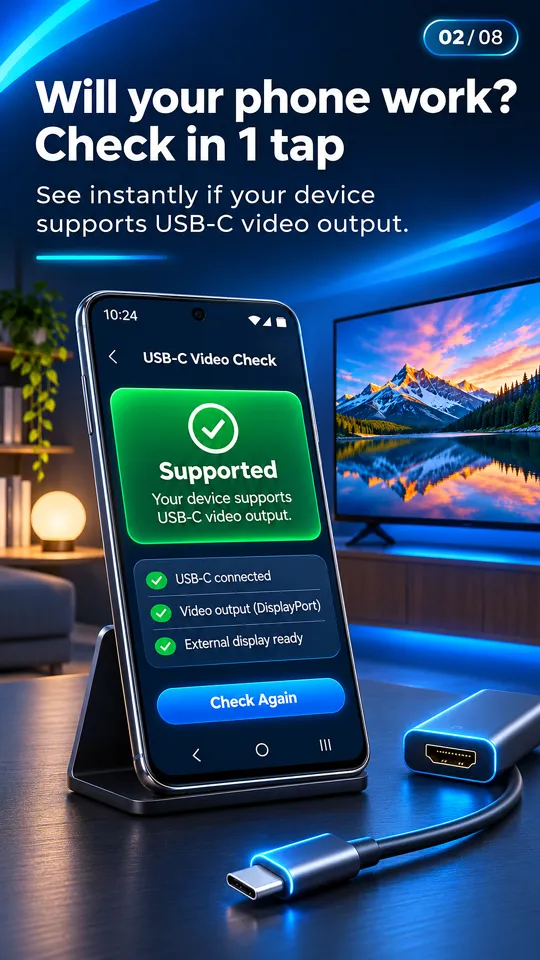
Our free app (with ads) tells you on first run whether your phone model is likely to support video output, before you spend money on a cable. When you plug in, it detects the HDMI connection and shows the TV's resolution and refresh rate, and its card turns green. If your phone has no video output, it can cast photos and videos over Wi-Fi to Chromecast, Google TV and DLNA smart TVs, including Samsung TVs. It cannot add HDMI output to a phone that does not have it.
Questions people ask
Does Samsung DeX work with HDMI?
Yes. On Galaxy S8 and newer S models, Note 8 and newer, the Z Fold series, Tab S4 and newer (and Tab S5e) and the A90 5G, a USB-C to HDMI cable starts DeX or a screen mirror on the TV. Other Galaxy A, M and F models and the Z Flip have no video output.
How do I connect my Samsung phone to my TV with an HDMI cable?
Connect a USB-C to HDMI cable to the TV, switch the TV to that HDMI input, unlock the phone and plug in the USB-C end. If the phone supports video output, the TV shows DeX or a mirror within a few seconds.
How do I mirror my screen instead of using DeX?
Turn DeX off with the DeX tile in quick settings, or in Settings > Connected devices > Samsung DeX. With DeX off, the TV mirrors your phone screen over the same cable.
Why is my Samsung phone not showing on the TV with HDMI?
Most often the phone has no video output: Galaxy A, M, F (except the A90 5G) and Z Flip models cannot send video over USB-C. On supported models, check the TV input, try another cable, and power the adapter if it needs it.
Can a Galaxy A phone connect to a TV?
Not with a USB-C to HDMI cable, except the Galaxy A90 5G. Galaxy A phones can still mirror to a smart TV over Wi-Fi with Smart View, or cast photos and videos to Chromecast, Google TV or DLNA TVs.